
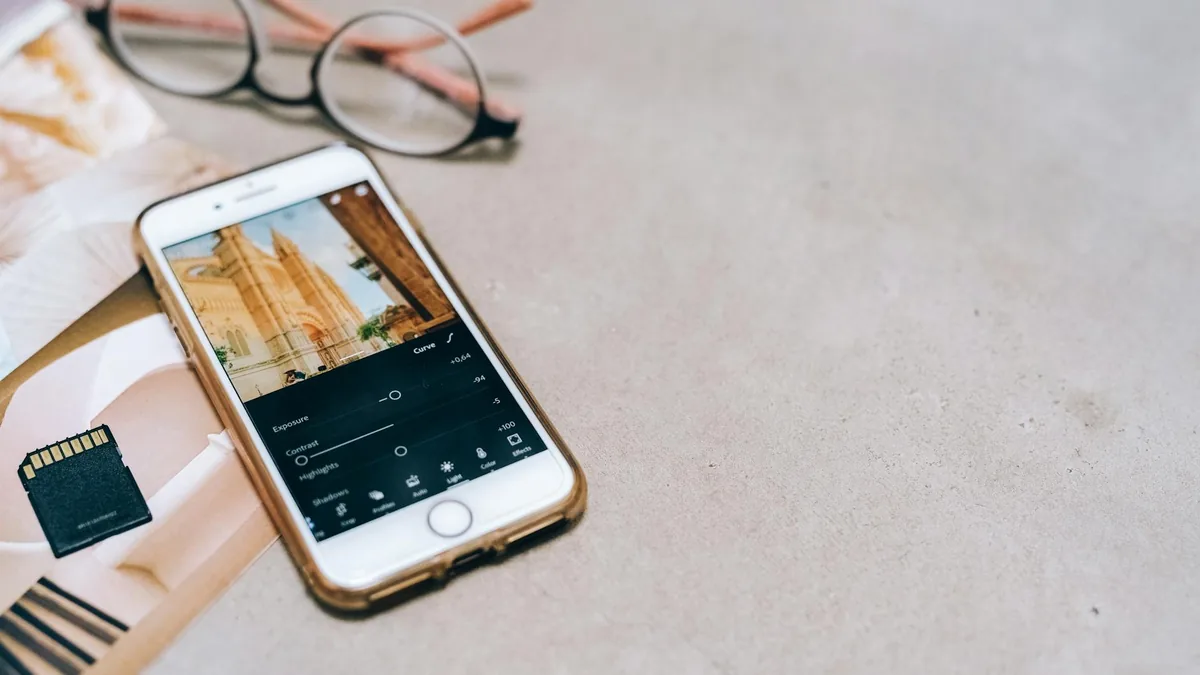
Not sure which editing app to use? This guide breaks down common features, best-fit use cases, and quick decision tips for photo and video editing on mobile or desktop.
Editing apps are tools that help you improve photos and videos—everything from quick fixes (crop, brightness, filters) to more advanced work (layers, masking, color grading, captions, and timelines).
If you’re choosing between the best editing apps, focus on what you edit most (photos vs. video), how fast you need results (templates vs. manual controls), and where you publish (social sizes, captions, exports). The “right” app is the one that fits your workflow without adding extra steps.
Quick comparison: common types of editing apps
| Type of app | Best for | Typical strengths | Watch-outs |
|---|---|---|---|
| One-tap / template editors | Fast social posts, reels, stories | Presets, auto-enhance, quick resizing, captions | Less control; edits can look “same-y” |
| Photo-first editors | Portraits, product shots, travel photos | Selective edits, retouching, RAW support (in some apps) | Video tools may be limited |
| Video-first editors | Short-form video, vlogs, tutorials | Timeline editing, transitions, audio, subtitles | Export settings and storage can get confusing |
| Pro / layer-based editors | Design work, composites, detailed control | Layers, masking, advanced tools | Steeper learning curve; more setup |
| Desktop companions / cross-device suites | Editing across phone + computer | Project syncing, bigger-screen precision | Account logins and file management overhead |

Who editing apps are best for
- Social creators who need quick crops, captions, and exports sized for TikTok/Instagram/YouTube Shorts.
- Students and professionals making presentations, portfolios, listings, or before/after visuals.
- Small businesses editing product photos, menus, flyers, and promo videos without hiring a full creative team.
- Hobby photographers who want better color, lighting, and selective adjustments (especially if you shoot in higher-quality formats).
- Anyone cleaning up everyday photos—removing distractions, sharpening, straightening, and improving lighting.
What to look for before you pick an editing app
- Your main media type: If you mostly edit photos, prioritize selective adjustments (brush/mask), healing/cleanup tools, and color controls. If you mostly edit video, prioritize timeline controls, audio tools, captions, and export options.
- Speed vs. control: Templates and presets are great for fast output; manual tools matter when you want a consistent “house style” or brand look.
- Export options that match where you post: Look for common aspect ratios (1:1, 4:5, 9:16, 16:9), easy resizing, and straightforward quality settings. If you collaborate, check whether it’s easy to share projects or export without surprises.
- Text, captions, and branding: For content work, check font controls, subtitle workflows, sticker/graphic libraries, and whether you can save brand colors or templates.
- File workflow and storage: Some apps lean on cloud projects; others keep everything local. Make sure you’re comfortable managing large video files and drafts.
- Learning curve: If you want results quickly, choose an app with guided edits and simple controls. If you’re willing to learn, layer-based or pro editors can replace multiple simpler apps.

Pros and cons of relying on editing apps
Pros
- Faster results than desktop-only workflows for everyday edits.
- All-in-one creation for quick photo editing apps + simple video edits, especially for social.
- Easy iteration—duplicate a project, tweak, and repost without starting over.
Cons
- Quality control varies depending on export settings and compression.
- Feature overlap can be confusing (multiple ways to do the same edit; inconsistent naming).
- Lock-in risk if projects can’t be exported in editable formats and you later switch tools.
Final verdict: the best editing apps are the ones that fit your workflow
If you want fast, consistent results for social posts, a template-based editor can be the most efficient choice. If you care more about precision and image quality, prioritize photo editing apps with selective adjustments and cleanup tools. For creators who publish video regularly, pick a video-first editor with a timeline, captions, and export settings you understand—so you spend less time troubleshooting and more time creating.
FAQ
Do I need separate apps for photo and video editing?
Not always. Many editing apps cover both, but dedicated photo or video tools usually feel faster and more complete for that specific job. If you edit both weekly, consider one “main” app plus a lightweight backup for quick tasks.
What export settings matter most for social media?
Start with the right aspect ratio (often 9:16 for short-form video) and a clear quality setting you can repeat. If an app offers multiple export modes, do a quick test on your platform to see how it looks after upload.
How can I keep my edits consistent across posts?
Use saved presets, templates, or a repeatable checklist (same crop, similar exposure, consistent color). If the app supports it, save brand colors and text styles so you’re not rebuilding every time.
If you’re narrowing down options, list your top 3 tasks (for example: “remove blemishes,” “add captions,” “resize for 9:16”) and compare apps based on those steps—not just feature lists. You can also explore our related guides to find tools that match your exact workflow.
